Last modified: March 19, 2026
Picking the right disc is one of those things that sounds simpler than it actually is. There are hundreds of models out there, and for a beginner it’s easy to end up with something that fits neither your skill level nor your playing style. Disc Finder was built to cut through a lot of that confusion.
What is Disc Finder?
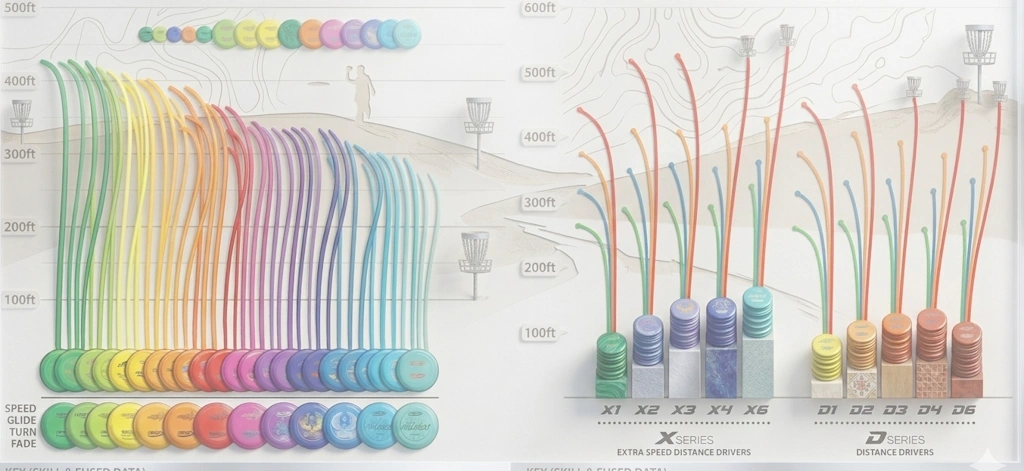
Disc Finder is a free tool that helps you find discs based on the flight numbers Speed, Glide, Turn, and Fade. Instead of scrolling through hundreds of models in our disc database hoping something fits, Disc Finder lets you set the parameters for what you’re actually looking for and filters to the options that match.
The tool launches with beginner-friendly default values already in place. That means you don’t need to do anything to pull up a list of discs that are realistic throws for most amateurs. Open it for the first time and you’re already looking at a selection suited for players who are just getting started.

How to Read the Flight Numbers
Every disc approved by PDGA has four flight numbers that describe how it behaves in the air. Disc Finder is built around these four values, and it’s worth understanding what they mean before you start adjusting anything.
Speed tells you how fast you need to throw for the disc to fly the way it was designed to. A disc with Speed 12 needs real arm speed to do what it’s built for, while a Speed 4 disc is much more forgiving and works fine with a moderate throw. For most people getting into disc golf, Speed 1 to 7 is the sensible range.
Glide is about how long the disc stays in the air. Higher Glide means more distance with less effort, which tends to be an advantage early on. A disc with Glide 6 or 7 can fly far even if you’re not particularly strong or technically refined yet.

Turn describes how much the disc curves to the right early in the flight, for a right-hand backhand throw. Values from 0 to negative 3 are great for beginners because they produce a straighter flight path and are easy to manage. Very understable discs, with Turn at negative 4 or negative 5, swing hard to the right and require deliberate technique to use the way they’re intended.
Fade is the last flight number, and it describes the left hook the disc makes toward the end of its flight. Low Fade, meaning 0, 1, or 2, gives you a gentle finish and a disc that’s easy to guide. Discs with high Fade, up around 4, 5, or 6, pull hard and predictably to the left, which can be useful for experienced players but frustrating for beginners.
Let the quick presets do the work for you
At the top of Disc Finder you’ll find six quick presets that automatically set all the filters based on what kind of disc you’re after. You don’t need to understand every flight number to use them.
Hitting “Beginner” pulls up discs with low Speed, high Glide, and a neutral to slightly understable flight, which is what actually works for most people who haven’t thrown a ton yet. “Just a putter” gives you all putters with Speed 1 to 4, which is what a lot of people want when they’re working on approach shots and short-range throws. “Understable” brings up discs that curve right and work well for hyzer flip shots, or simply if you want something that doesn’t cut hard to the left. “Dead straight” finds discs with a neutral flight path and minimal drift in either direction, while “Overstable” and “Max distance” cover the more specific needs you’ll likely come back to as you develop your game.
Search and filter on your own
If you want to go deeper than the presets allow, you can adjust all four flight number filters manually. You can also filter by manufacturer and disc type, so if you want to see all midranges from Discmania with moderate Fade, it’s just a matter of setting that up. Every column in the table is sortable, and discs that are particularly well suited for beginners are flagged with a dedicated marker.
If you need more detail on a specific disc than Disc Finder shows, you can jump straight over to the full disc database with one click.

Where to find Disc Finder
You can find the Disc Finder in the menu under “Guides”. It’s free, requires no login, and works just as well on your phone as on a computer, so you can pull it up in a shop the next time you’re not sure what to grab. If you’re curious about which plastic type fits the disc you find, the plastics database is the next logical stop.